Backup and Restore
Backup staging namespace using Velero
Let’s backup the staging namespace using velero
velero backup create staging-backup --include-namespaces staging
Check the status of backup
velero backup describe staging-backup
The output should look like below. Check if the Phase is Completed and if the snapshots are created.
Name:         staging-backup
Namespace:    velero
Labels:       velero.io/storage-location=default
Annotations:  <none>

Phase:  Completed

Namespaces:
  Included:  staging
  Excluded:  <none>

Resources:
  Included:        *
  Excluded:        <none>
  Cluster-scoped:  auto

Label selector:  <none>

Storage Location:  default

Snapshot PVs:  auto

TTL:  720h0m0s

Hooks:  <none>

Backup Format Version:  1

Started:    2020-04-16 02:25:53 +0000 UTC
Completed:  2020-04-16 02:26:08 +0000 UTC

Expiration:  2020-05-16 02:25:53 +0000 UTC

Persistent Volumes:  2 of 2 snapshots completed successfully (specify --details for more information)
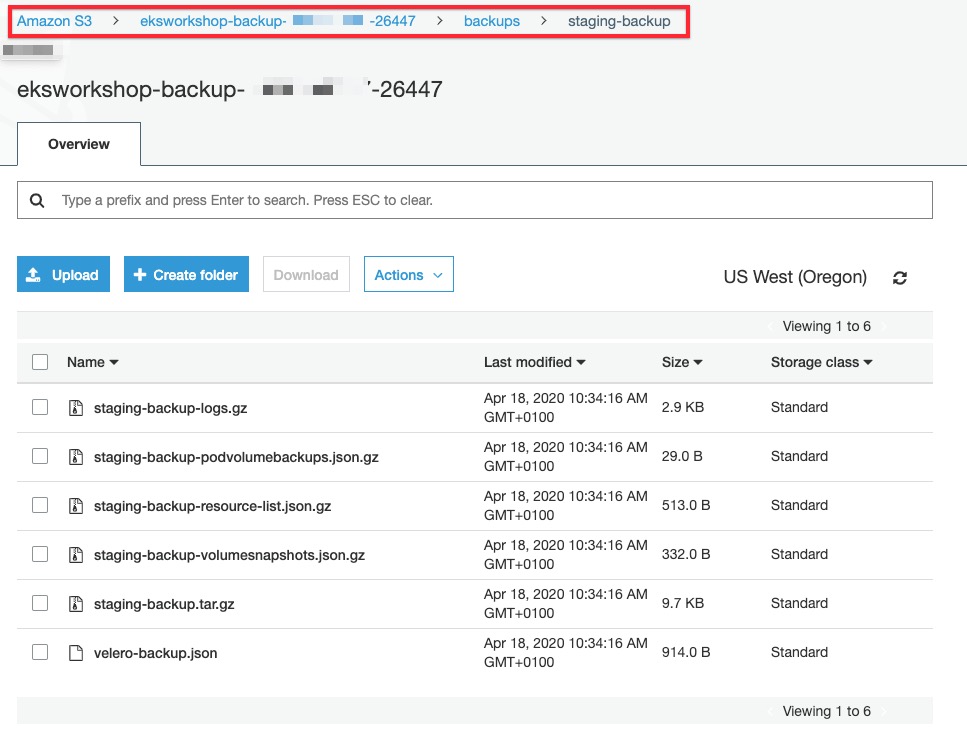
Access Velero S3 bucket using AWS Managment Console and verify if ‘staging-backup’ have been created.
Simulate a disaster
Let’s delelte the ‘staging’ namespace to simulate a disaster
kubectl delete namespace staging
Verify that MySQL and Wordpress are deleted. The command below should return No resources found.
kubectl get all -n staging
Restore staging namespace
Run the velero restore command from the backup created. It may take a couple of minutes to restore the namespace.
velero restore create --from-backup staging-backup
You can check the restore status using the command below:
velero restore get
Check restore STATUS in the output.
NAME                            BACKUP           STATUS      WARNINGS   ERRORS   CREATED                         SELECTOR
staging-backup-20200416024049   staging-backup   Completed   0          0        2020-04-16 02:40:50 +0000 UTC   <none>
Verify if deployments, replicasets, services and pods are restored
kubectl get all -n staging
Output will look something like below:
NAME                                  READY   STATUS    RESTARTS   AGE
pod/wordpress-549c4f6867-r9wl9        1/1     Running   0          8m37s
pod/wordpress-mysql-67565bd57-rx2c5   1/1     Running   0          8m37s


NAME                      TYPE           CLUSTER-IP     EXTERNAL-IP                                                              PORT(S)        AGE
service/wordpress         LoadBalancer   10.100.139.5   af09f28402adc47af8c7f667f439ed51-334979785.us-west-2.elb.amazonaws.com   80:31439/TCP   8m36s
service/wordpress-mysql   ClusterIP      None           <none>                                                                   3306/TCP       8m37s


NAME                              READY   UP-TO-DATE   AVAILABLE   AGE
deployment.apps/wordpress         1/1     1            1           8m37s
deployment.apps/wordpress-mysql   1/1     1            1           8m37s

NAME                                        DESIRED   CURRENT   READY   AGE
replicaset.apps/wordpress-549c4f6867        1         1         1       8m37s
replicaset.apps/wordpress-mysql-67565bd57   1         1         1       8m37s
Access Wordpress using the load balancer created by the Service.
kubectl get svc -n staging --field-selector metadata.name=wordpress -o=jsonpath='{.items[0].status.loadBalancer.ingress[0].hostname}'
The output should return the load balancer’s url
af09f28402adc47af8c7f667f439ed51-334979785.us-west-2.elb.amazonaws.com
Access the wordpress application at load balancer’s url and verify if the blog post you created is restored.